
5.6 KiB
Adding a Diffusion Model
This guide walks through the process of adding a new Diffusion model to vLLM-Omni, using Qwen/Qwen-Image-Edit as a comprehensive example.
Table of Contents
Overview
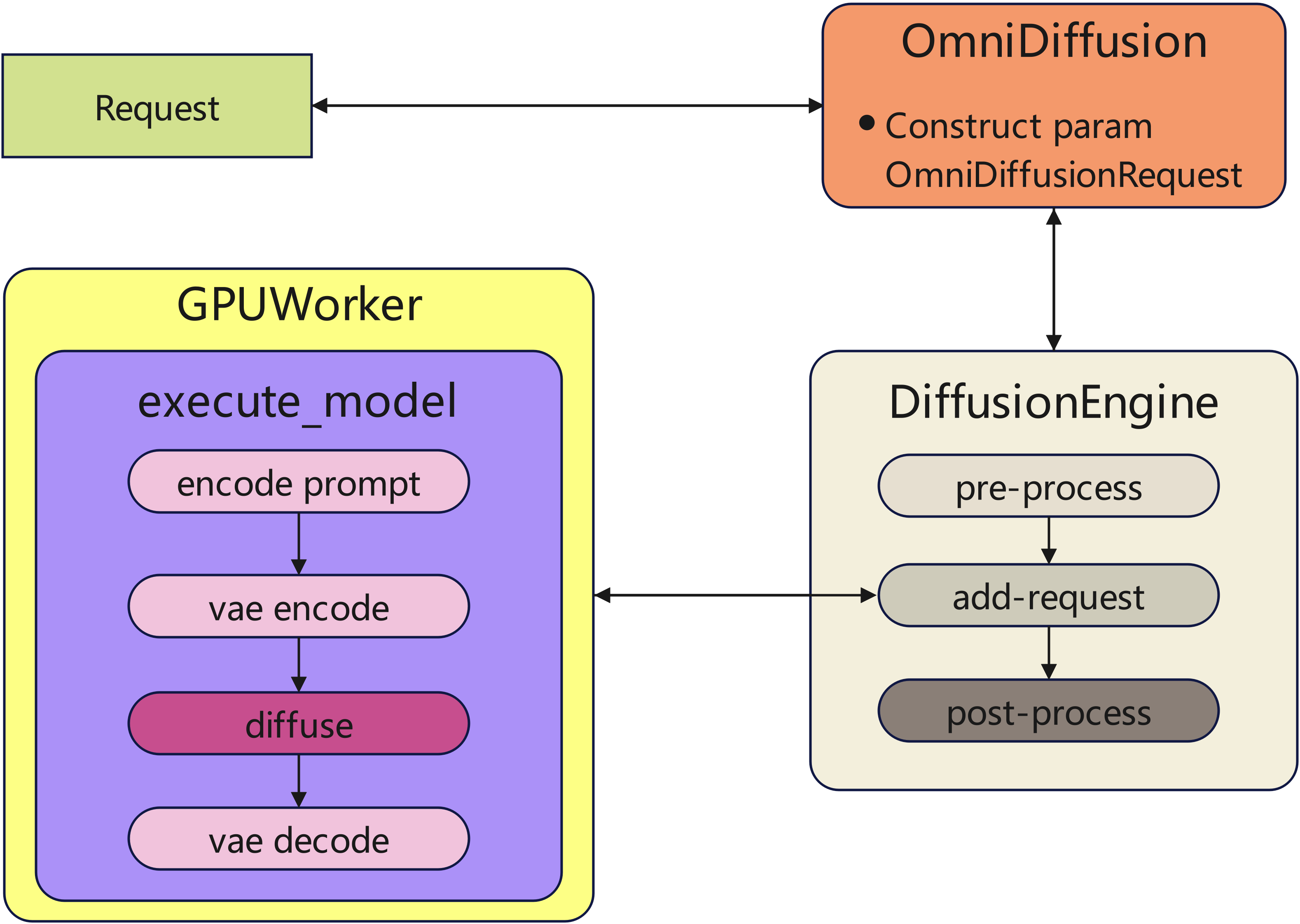
When add a new diffusion model into vLLM-Omni, additional adaptation work is required due to the following reasons:
-
New model must follow the framework’s parameter passing mechanisms and inference flow.
-
Replacing the model’s default implementations with optimized modules, which is necessary to achieve the better performance.
The diffusion execution flow as follow:
Directory Structure
File Structure for Adding a New Diffusion Model
vllm_omni/
└── examples/
    └──offline_inference
        └── example script                # reuse existing if possible (e.g., image_edit.py)
    └──online_serving
        └── example script
└── diffusion/
    └── registry.py                       # Registry work
    ├── request.py                        # Request Info
    └── models/your_model_name/           # Model directory (e.g., qwen_image)
        └── pipeline_xxx.py               # Model implementation (e.g., pipeline_qwen_image_edit.py)
Step-by-step-implementation
Step 1: Model Implementation
The diffusion pipeline’s implementation follows HuggingFace Diffusers, and components that do not need modification can be imported directly.
1.1 Define the Pipeline Class
Define the pipeline class, e.g., QwenImageEditPipeline, and initialize all required submodules, either from HuggingFace diffusers or custom implementations. In QwenImageEditPipeline, only QwenImageTransformer2DModel is re-implemented to support optimizations such as Ulysses-SP. When adding new models in the future, you can either reuse this re-implemented QwenImageTransformer2DModel or extend it as needed.
1.2 Pre-Processing and Post-Processing Extraction
Extract the pre-processing and post-processing logic from the pipeline class to follow vLLM-Omni’s execution flow. For Qwen-Image-Edit:
def get_qwen_image_edit_pre_process_func(
    od_config: OmniDiffusionConfig,
):
    """
    Define a pre-processing function that resizes input images and
    pre-process for subsequent inference.
    """
def get_qwen_image_edit_post_process_func(
    od_config: OmniDiffusionConfig,
):
    """
    Defines a post-processing function that post-process images.
    """
1.3 Define the forward function
The forward function of QwenImageEditPipeline follows the HuggingFace diffusers design for the most part. The key differences are:
- As described in the overview, arguments are passed through
OnniDiffusionRequest, so we need to get user parameters from it accordingly.
prompt = req.prompt if req.prompt is not None else prompt
- pre/post-processing are handled by the framework elsewhere, so skip them.
Step 2: Extend OmniDiffusionRequest Fields
User-provided inputs are ultimately passed to the model’s forward method through OmniDiffusionRequest, so we add the required fields here to support the new model.
prompt: str | list[str] | None = None
negative_prompt: str | list[str] | None = None
...
Step 3: Registry
- registry diffusion model in registry.py
_DIFFUSION_MODELS = {
    # arch:(mod_folder, mod_relname, cls_name)
    ...
    "QwenImageEditPipeline": (
        "qwen_image",
        "pipeline_qwen_image_edit",
        "QwenImageEditPipeline",
    ),
    ...
}
- registry pre-process get function
_DIFFUSION_PRE_PROCESS_FUNCS = {
    # arch: pre_process_func
    ...
    "QwenImageEditPipeline": "get_qwen_image_edit_pre_process_func",
    ...
}
- registry post-process get function
_DIFFUSION_POST_PROCESS_FUNCS = {
    # arch: post_process_func
    ...
    "QwenImageEditPipeline": "get_qwen_image_edit_post_process_func",
    ...
}
Step 4: Add an Example Script
For each newly integrated model, we need to provide examples script under the examples/ to demonstrate how to initialize the pipeline with Omni, pass in user inputs, and generate outputs. Key point for writing the example:
-
Use the Omni entrypoint to load the model and construct the pipeline.
-
Show how to format user inputs and pass them via omni.generate(...).
-
Demonstrate the common runtime arguments, such as:
-
model path or model name
-
input image(s) or prompt text
-
key diffusion parameters (e.g., inference steps, guidance scale)
-
optional acceleration backends (e.g., Cache-DiT, TeaCache)
-
-
Save or display the generated results so users can validate the integration.
Testing
For comprehensive testing guidelines, please refer to the Test File Structure and Style Guide.
Adding a Model Recipe
After implementing and testing your model, please add a model recipe to the vllm-project/recipes repository. This helps other users understand how to use your model with vLLM-Omni.