 xuexueligaoand汪志鹏
4a8ac29775
xuexueligaoand汪志鹏
4a8ac29775
Signed-off-by: xuezhihao <89690814+xuexueligao@users.noreply.github.com>
Signed-off-by: 汪志鹏 <wangzhipeng628@gmail.com>
Co-authored-by: 汪志鹏 <wangzhipeng628@gmail.com>
vLLM-Omni
vLLM-Omni offers a ComfyUI integration on top of its online serving API. It can send model inference requests to either a locally running vLLM-Omni service or a remote one.
Requirement
- Python 3.12 or above
- ComfyUI installed
- vLLM-Omni installed on either the same device or another device discoverable via the internet.
- No need to install additional packages apart from those already required by ComfyUI.
Tip
If you run both ComfyUI and vLLM-Omni on the same device, you can create separate virtual environments and use different Python versions for them.
Installation
Copy this folder to the custom_nodes subfolder of your ComfyUI installation. Your directory should look like ComfyUI/custom_nodes/ComfyUI-vLLM-Omni.
If you are running ComfyUI during copying, you should restart ComfyUI to load this extension.
Tip
You can use utility websites such as https://download-directory.github.io/ to download a subdirectory of a repo. Also checkout community discussions (e.g., https://stackoverflow.com/questions/7106012/download-a-single-folder-or-directory-from-a-github-repository) for more info.
On the device and virtual environment you run ComfyUI, launch ComfyUI with
cd ComfyUI

# The regular way
python main.py

# If you are mainly using this node, launch it faster with
python main.py --cpu
On the device and virtual environment you run vLLM-Omni, start a model service with
vllm serve The_Model_ID_to_Serve --omni --port 8000
Check ComfyUI's sidebar -> Node Library. There should be a new folder named vLLM-Omni.
If no, check your shell running the ComfyUI process. There may be some error messages before the line Import times for custom nodes: and the line To see the GUI go to: http://127.0.0.1:8188.
Quickstart
This extension offers the following nodes based on the output modalities (at ComfyUI sidebar -> Node Library):
- Generate Image for text-to-image and image-to-image tasks
- Generate Video for text-to-video, first-frame/image-to-video, and reference-conditioned video
- FastH3 Deployment for routing text-to-video requests to a MiniMax-H3 server with FastH3 fused at startup
- Multimodality Understanding for multimodality-to-text and multimodality-to-audio tasks
- TTS and TTS Voice Clone for TTS tasks
This extension also offers example workflows (at ComfyUI sidebar -> Templates -> vLLM-Omni)
Note
The node UI and feature designs are intended to match vLLM-Omni online serving interfaces. It cannot offer more than what the interfaces support.
Every node carries the vLLM-Omni mark in its title bar and is tinted by what it outputs, so a graph is readable at a glance:
| Colour | Nodes | What they produce |
|---|---|---|
| Blue | Generate Image, Generate Video, Multimodality Understanding, TTS, TTS Voice Clone | A generated image, video, audio, or text. These are the only nodes that reach a server. |
| Amber | AR / Diffusion / Multi-Stage Sampling Params | Sampling parameters that apply to any model |
| Purple | Qwen TTS Params, Wan Video Params, MiniMax-H3 Video Params | Parameters that only one model family accepts |
| Red | LoRA, FastH3 Deployment | Which weights the server is expected to have loaded |
| Teal | Video References | Reference media |
Recolouring a node by hand (right click -> Colors) overrides its tint, and the choice is kept.
Generate Video takes a clip length in seconds (duration), not a frame count. Frames stay the wire unit and are derived with the node's fps, so the length is always measured against the rate that is actually served; models that accept only certain frame counts still round to their own lattice server-side. Graphs saved before this widget existed stored num_frames in its place and are converted on load, using the fps recorded alongside it -- the browser console names every node it rewrites.
To build a simple workflow yourself,
- Drag a generation node onto the canvas.
- Depending on your need, grab built-in multimedia file loader nodes, such as image->Load Image, image->video->Load Video, audio->Load Audio
- Depending on your need, grab built-in multimedia file preview nodes, such as image->Preview Image, image->video->Save Video, audio->Preview Audio, utils->Preview as Text.
- If you want to tune sampling parameters, grab corresponding nodes from vLLM-Omni-> Sampling Params.
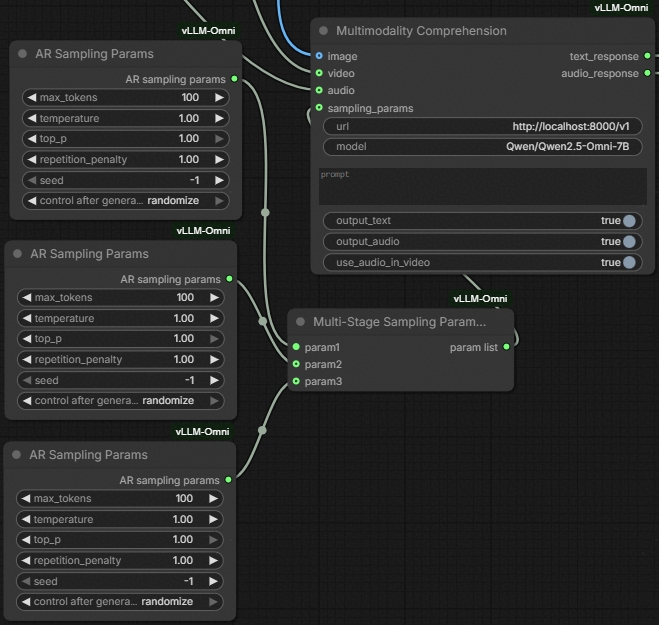
- For multi-stage models, you can connect multiple AR Sampling Params and Diffusion Sampling Params nodes to a Multi-Stage Sampling Params List node, and connect this node to the generation node.
- For some multi-stage models like BAGEL, only one stage's sampling parameters are exposed and tunable via vLLM-Omni's online serving API. Thus, these models are treated as single-stage ones. Please check the vLLM-Omni documentation on how to correctly set each model's sampling parameters.
- For multi-stage models where all stages are either autoregression or diffusion, you can also connect only a single Sampling Params node, indicating that this set of sampling parameters will be used for all stages.
Screenshots and Examples
Multimodal understanding (e.g., Qwen Omni series, BAGEL)
(Also available at ComfyUI sidebar->Template->vLLM-Omni->vLLM-Omni Multimodal Understanding)
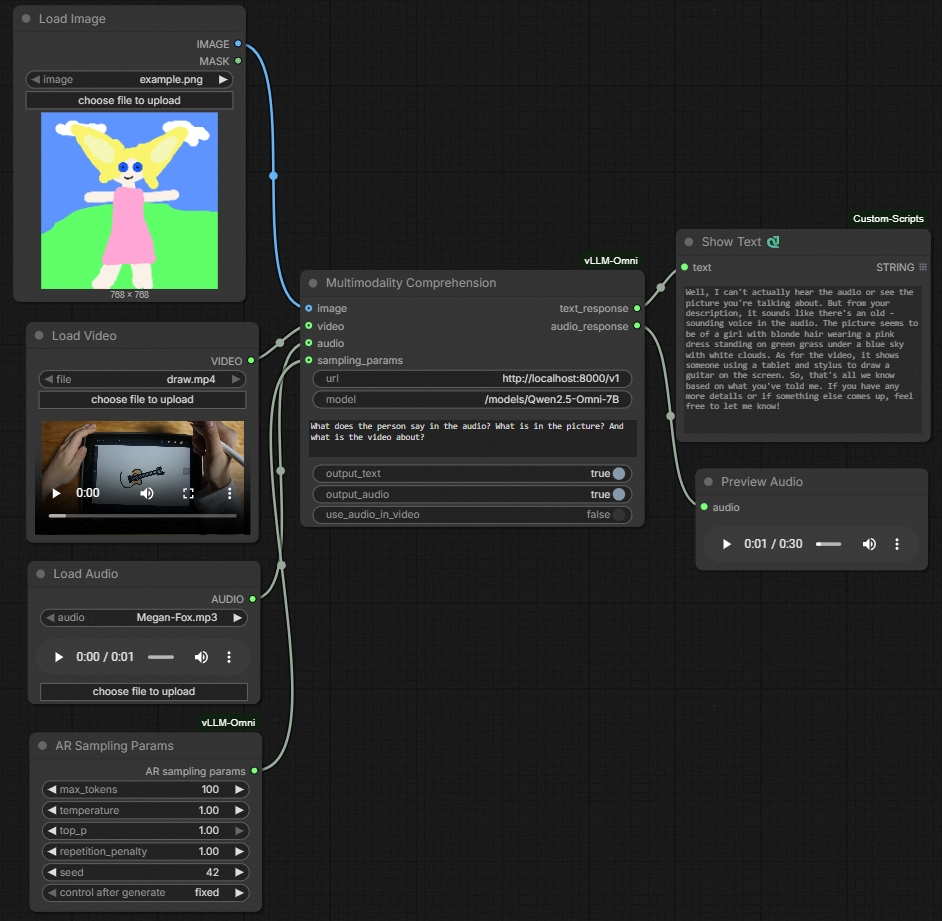
Tip
Although this node enables all-modality input, you should check whether the specific model you host and request for supports the modalities you connect to the node.
You can configure per-stage sampling parameters for multi-stage models.
Text-to-image and image-to-image generation (e.g., Z-Image-Turbo, Qwen-Image-Edit, BAGEL)
(Also available at ComfyUI sidebar->Template->vLLM-Omni->vLLM-Omni Image Generation)
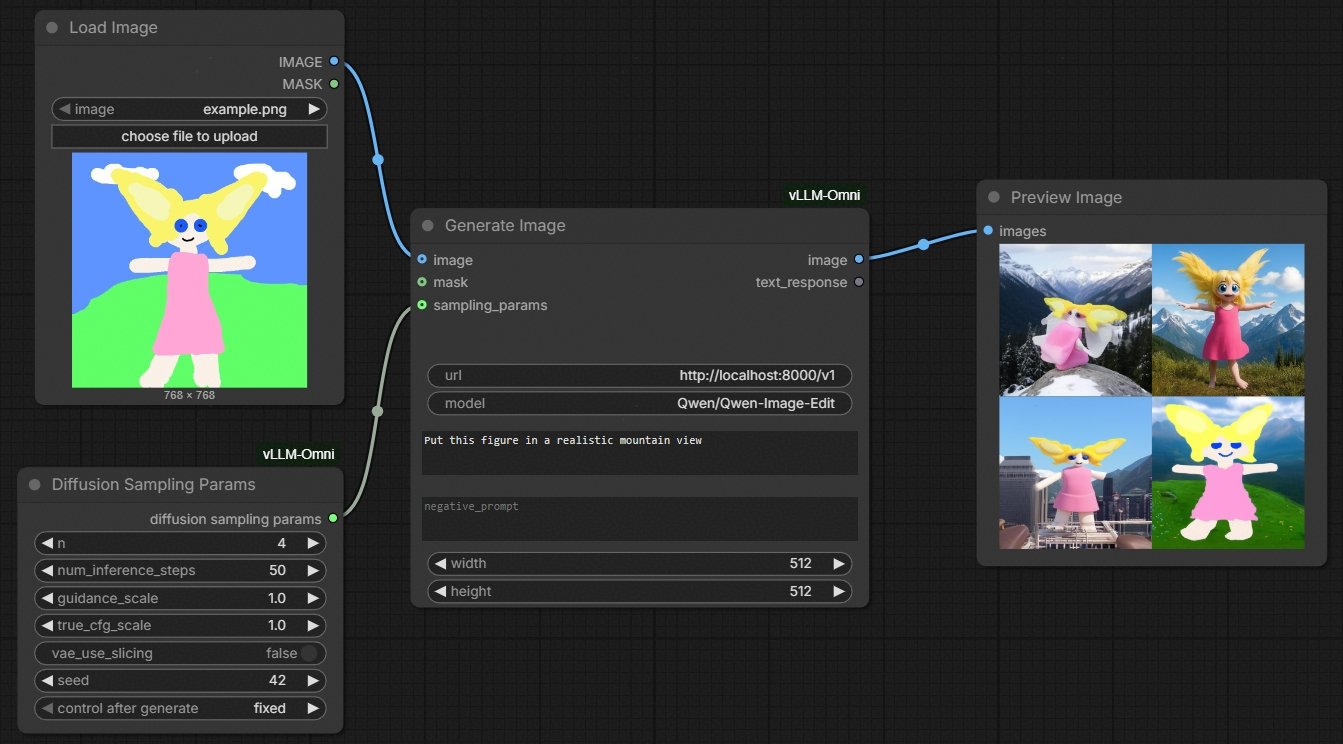
Tip
The node automatically choose text-to-image or image-to-image API endpoints depending on whether you connect an image input or not.
Text-to-video and image-to-video generation (e.g., Wan, MiniMax-H3)
(Also available at ComfyUI sidebar->Template->vLLM-Omni->vLLM-Omni Video Generation)
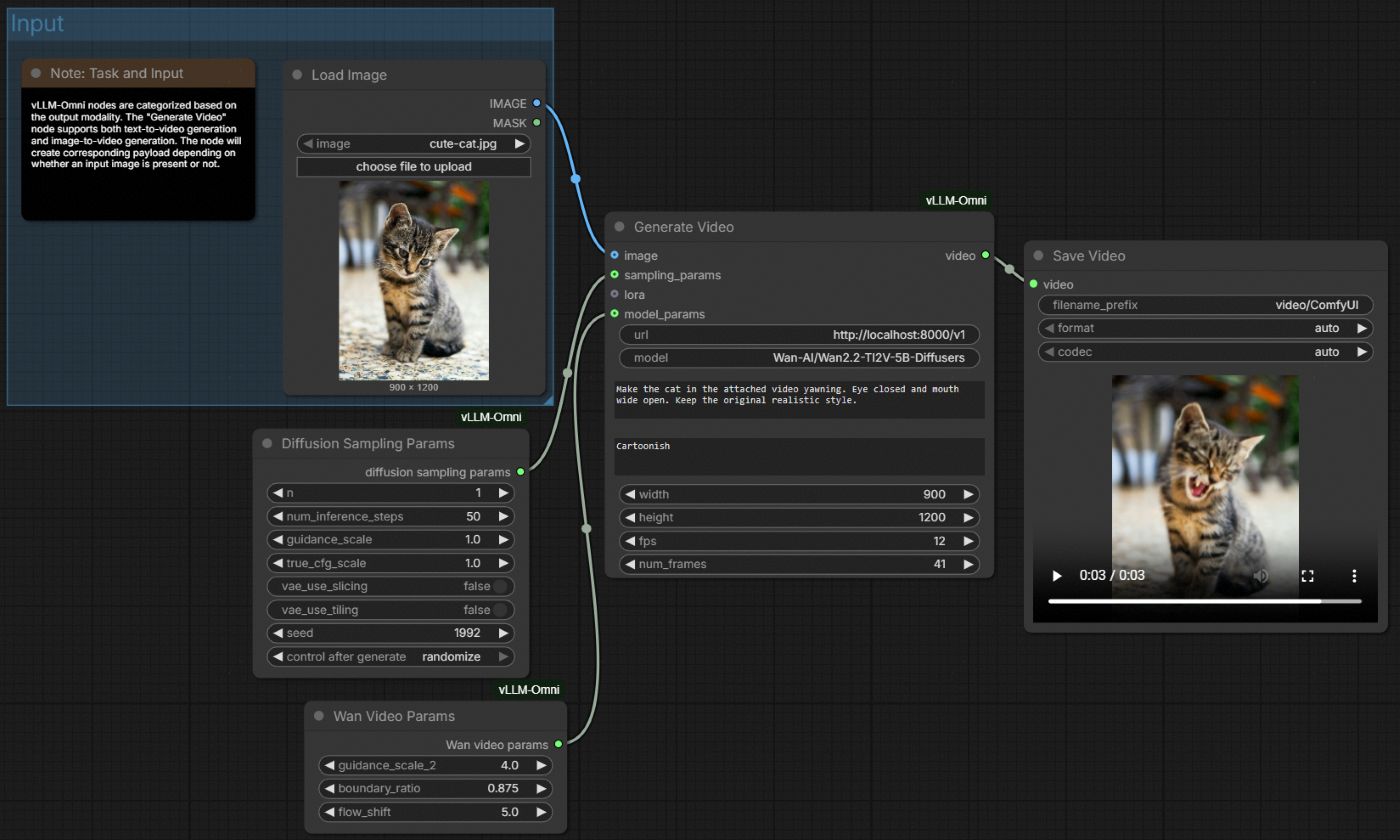
Tip
Connect a frame image for first-frame / image-to-video (e.g., Wan I2V, MiniMax-H3 FL2VA).
For reference-conditioned generation (MiniMax-H3 Ref2VA), connect a Video References node instead.
Do not use
frameandreferencestogether. Task routing is automatic from which inputs you connect.
H3 video upscale (WF-07)
The vLLM-Omni MiniMax H3 Video Upscale template generates video remotely, upscales it with SeedVR2, and saves the original and upscaled videos with the generated audio and FPS. See workflow setup.
FastH3 text-to-video
FastH3 is fused into MiniMax-H3 when the vLLM-Omni server starts; it is not a request-switchable LoRA. Download one adapter variant and start a non-offloaded FL2VA server. For the Dense / Data-Free profile:
export FASTH3_DIR=/path/to/fasth3
hf download FastVideo/FastVideo-FastH3-4-step-Preview-v1-LoRA \
  dense-datafree/adapter_model.safetensors --local-dir "${FASTH3_DIR}"

vllm serve /path/to/MiniMax-H3 \
  --omni \
  --task-type fl2va \
  --lora-path "${FASTH3_DIR}/dense-datafree/adapter_model.safetensors" \
  --port 8000
For the VSA / Data-Free profile, download vsa-datafree/adapter_model.safetensors, use that file as --lora-path, and add:
--diffusion-attention-backend FASTVIDEO_VSA \
--fastvideo-vsa-topk 64
The VSA profile also requires a compatible fastvideo-kernel installation. See the MiniMax-H3 FastH3 recipe for the full serving contract, supported parallel layouts, and kernel requirements.
Open the vLLM-Omni FastH3 Text to Video template, then:
- Set the server URL and served model name on FastH3 Deployment.
- Connect its output to Generate Video → fast_h3. When connected, the deployment node's URL and model take precedence over the corresponding Generate Video widgets.
- Keep
frame,references, LoRA, and MiniMax-H3 Video Params disconnected. FastH3 Preview v1 supports T2VA only, is already fused, and owns both flow shifts. - A connected Diffusion Sampling Params node may set seed and other ordinary sampling options. The integration always enforces four denoising steps and 24 FPS for FastH3.
The node records which server the workflow targets; it does not start one, nor switch adapters or attention backends on a running server.
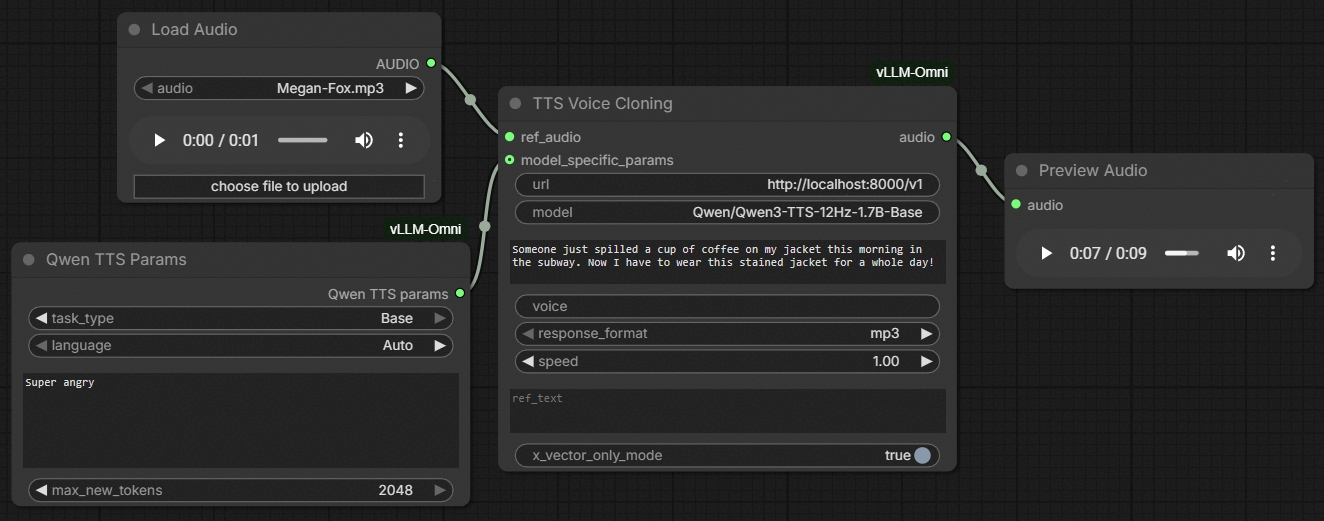
TTS (e.g., Qwen TTS series)
(Also available at ComfyUI sidebar->Template->vLLM-Omni->vLLM-Omni TTS)
Tip
There is a dedicated node for VoiceClone tasks with reference audio input. Other simple text-to-speech tasks should use the regular TTS node.
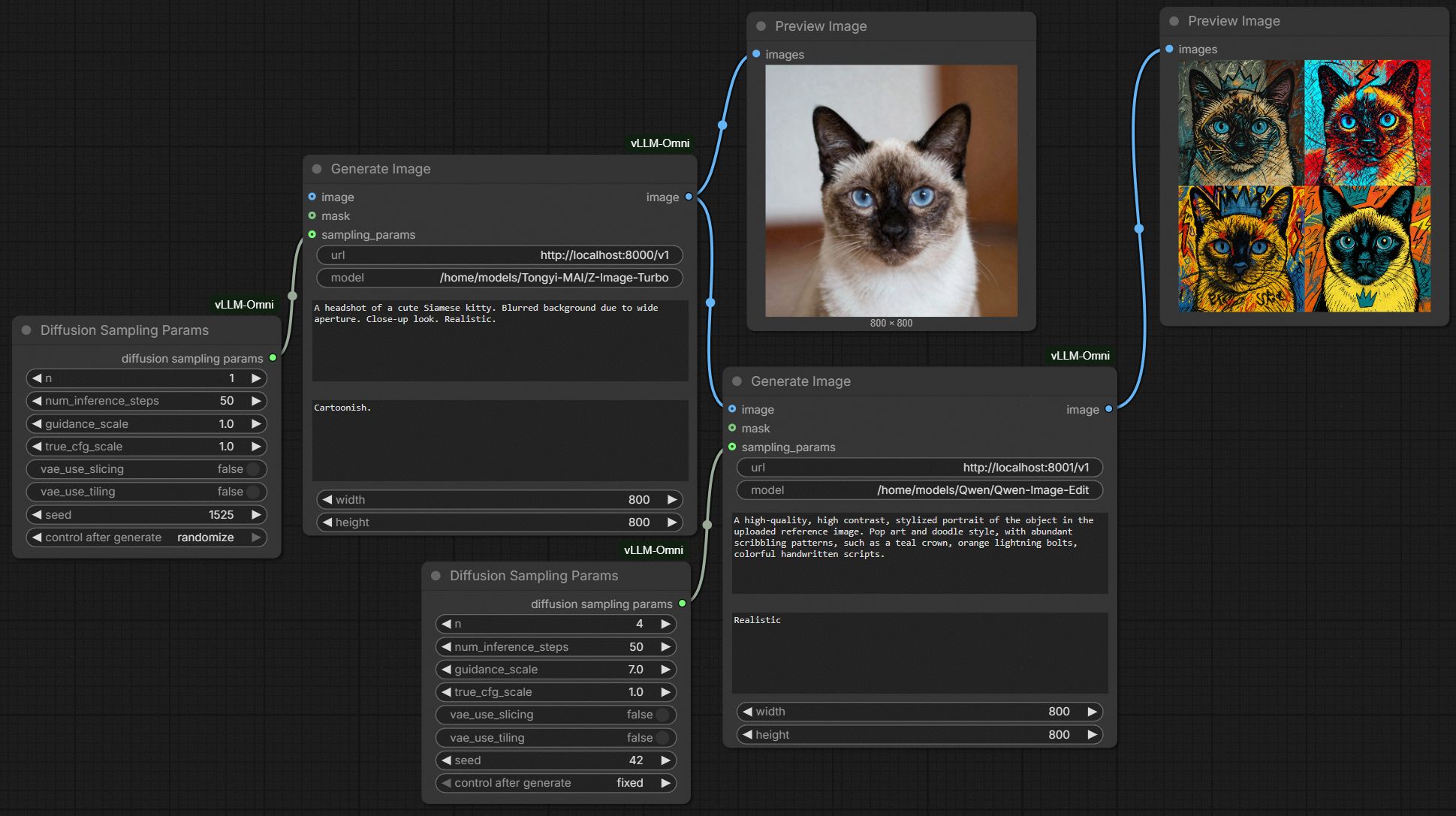
Chaining multiple model services
(Also available at ComfyUI sidebar->Template->vLLM-Omni->vLLM-Omni Chaining Services)
Develop
Follow the development convention and rules of vLLM-Omni.
Node tints and the title-bar mark are applied in web/main.js, keyed off each node's declared output types rather than a list of node names. A new node that returns an existing type is themed with no front-end change; a new output type needs one entry in FAMILY_BY_OUTPUT there.
Limitation and Non-Goals
- Single server mode only. No automatic load balancing or failover.
- Features set is bounded to vLLM-Omni's online service capability, including
- The types of models supported in online mode,
- The types of sampling parameters supported in the online mode,
- The ways to send files (primarily through full-length base64 in JSON payload),
- Figuring out errors in the payload (such as unsupported fields by a specific model) if the endpoint does not explicitly return an error,
- (The lack of) Authentication
- (The lack of) Progress indicator
Support
If you are new to ComfyUI, please check out its documentation for usage instructions.
If you are new to vLLM-Omni, please also check out its documentation for usage instructions.
Whenever you find an issue or problem, please
- First find out if this is an upstream limitation of vLLM-Omni's online serving mode, by checking their documentation.
- Open an issue that clearly describes this ComfyUI or online service problem.
Acknowledgements
Features
- https://github.com/dougbtv/comfyui-vllm-omni/ The official reference implementation for ComfyUI integration with vLLM-Omni's DALL-E compatible image generation API.
- https://github.com/Comfy-Org/ComfyUI/tree/master/comfy_extras ComfyUI's built-in node implementations.
UI/UX design references
- https://github.com/sgl-project/sglang/pull/15271 SGLang Diffusion's official ComfyUI integration for image and video generation.
- https://github.com/SXQBW/ComfyUI-Qwen-Omni A third party ComfyUI integration for Qwen Omni series.
- https://github.com/flybirdxx/ComfyUI-Qwen-TTS https://github.com/DarioFT/ComfyUI-Qwen3-TTS Third party ComfyUI integrations for Qwen TTS series.