# vLLM-Omni
vLLM-Omni offers a ComfyUI integration on top of its online serving API.
It can send model inference requests to either a locally running vLLM-Omni service or a remote one.
## Requirement
- Python 3.12 or above
- [ComfyUI installed](https://docs.comfy.org/installation/system_requirements)
- [vLLM-Omni installed](https://docs.vllm.ai/projects/vllm-omni/en/latest/getting_started/installation/) on either the same device or another device discoverable via the internet.
- No need to install additional packages apart from those already required by ComfyUI.
> [!TIP]
> If you run both ComfyUI and vLLM-Omni on the same device, you can create separate virtual environments and use different Python versions for them.
## Installation
Copy this folder to the `custom_nodes` subfolder of your ComfyUI installation. Your directory should look like `ComfyUI/custom_nodes/ComfyUI-vLLM-Omni`.
If you are running ComfyUI during copying, you should restart ComfyUI to load this extension.
> [!TIP]
> You can use utility websites such as https://download-directory.github.io/ to download a subdirectory of a repo. Also checkout community discussions (e.g., https://stackoverflow.com/questions/7106012/download-a-single-folder-or-directory-from-a-github-repository) for more info.
On the device and virtual environment you run ComfyUI, launch ComfyUI with
```bash
cd ComfyUI
# The regular way
python main.py
# If you are mainly using this node, launch it faster with
python main.py --cpu
```
On the device and virtual environment you run vLLM-Omni, start a model service with
```bash
vllm serve The_Model_ID_to_Serve --omni --port 8000
```
Check **ComfyUI's sidebar -> Node Library**. There should be a new folder named **vLLM-Omni**.
If no, check your shell running the ComfyUI process. There may be some error messages before the line `Import times for custom nodes:` and the line `To see the GUI go to: http://127.0.0.1:8188`.
## Quickstart
This extension offers the following nodes based on the output modalities (at **ComfyUI sidebar -> Node Library**):
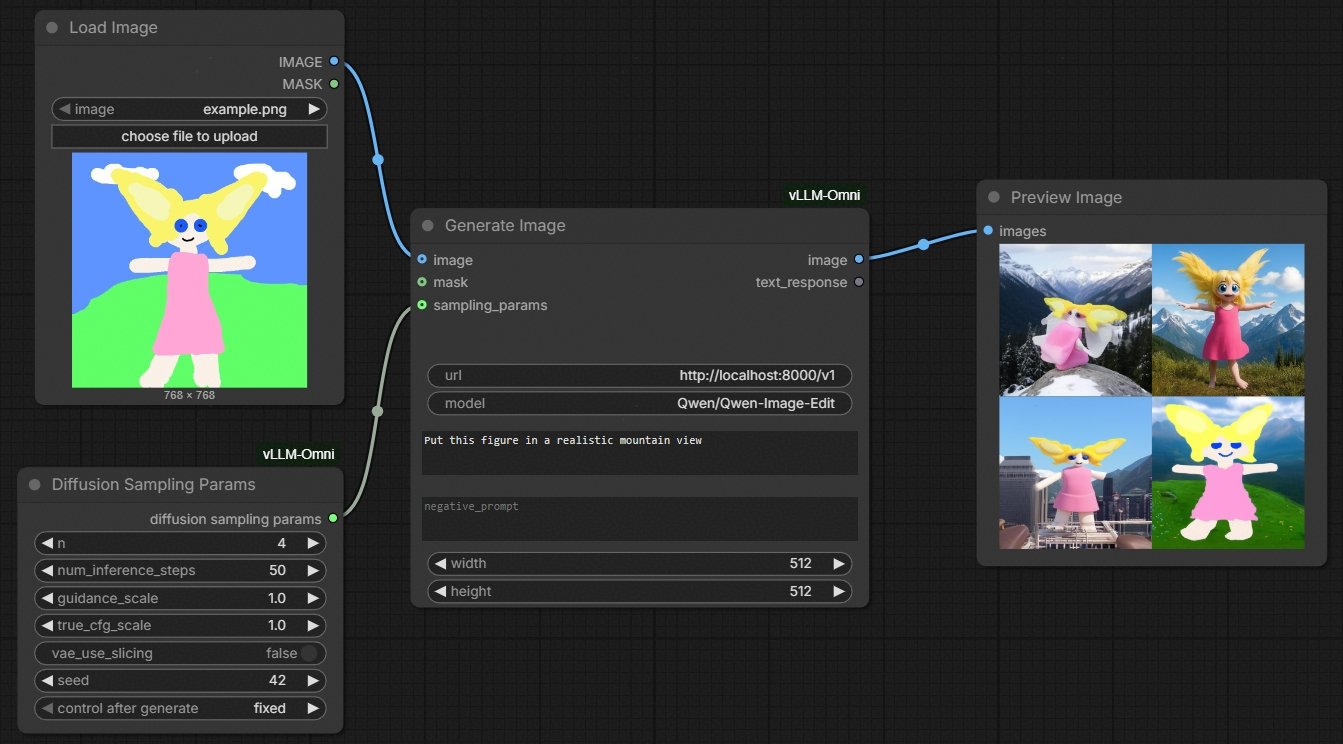
- **Generate Image** for text-to-image and image-to-image tasks
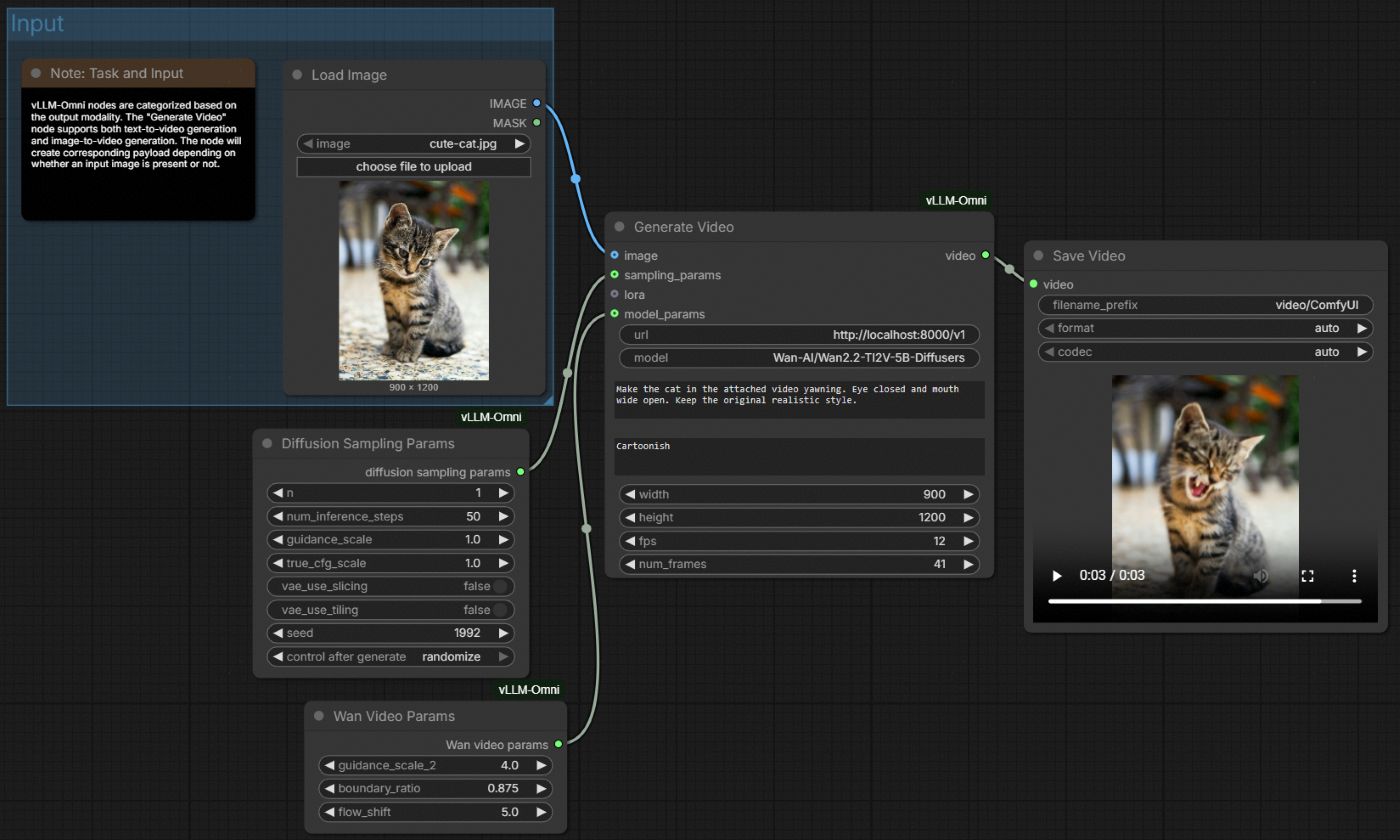
- **Generate Video** for text-to-video and image-to-video tasks
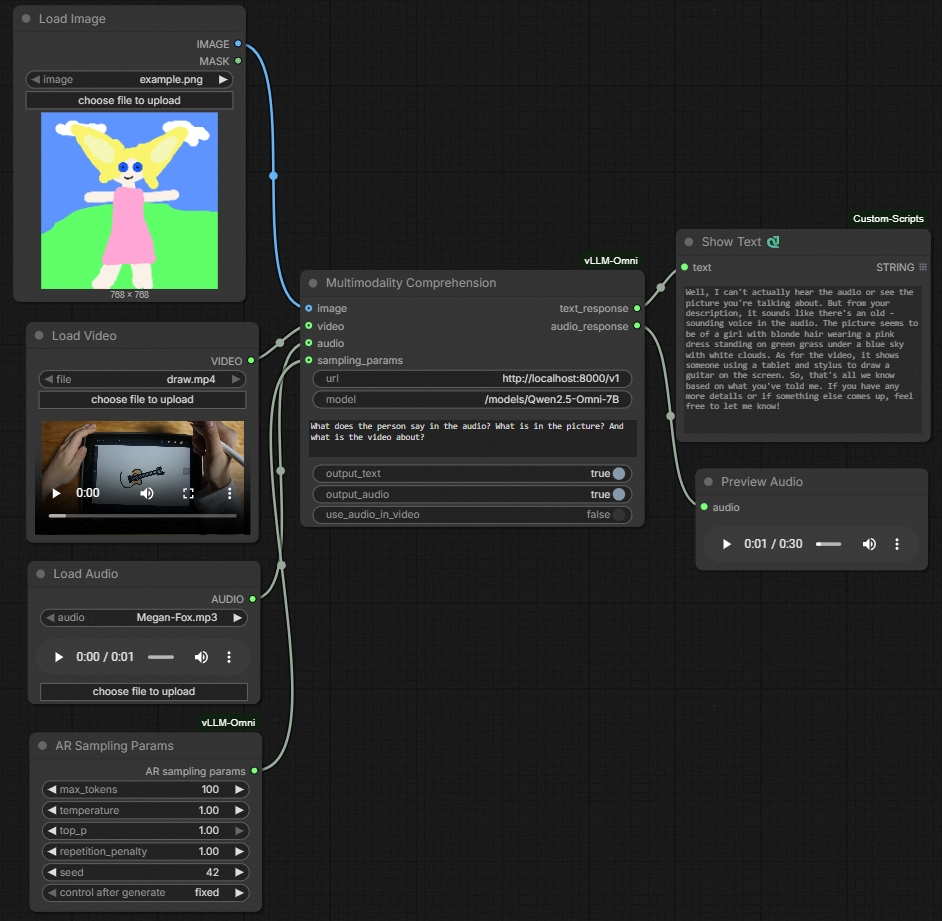
- **Multimodality Understanding** for multimodality-to-text and multimodality-to-audio tasks
- **TTS** and **TTS Voice Clone** for TTS tasks
This extension also offers example workflows (at **ComfyUI sidebar -> Templates -> vLLM-Omni**)
> [!NOTE]
> The node UI and feature designs are intended to match vLLM-Omni online serving interfaces. It cannot offer more than what the interfaces support.
To build a simple workflow yourself,
- Drag a generation node onto the canvas.
- Depending on your need, grab built-in multimedia file loader nodes, such as **image->Load Image**, **image->video->Load Video**, **audio->Load Audio**
- Depending on your need, grab built-in multimedia file preview nodes, such as **image->Preview Image**, **image->video->Save Video**, **audio->Preview Audio**, **utils->Preview as Text**.
- If you want to tune sampling parameters, grab corresponding nodes from **vLLM-Omni-> Sampling Params**.
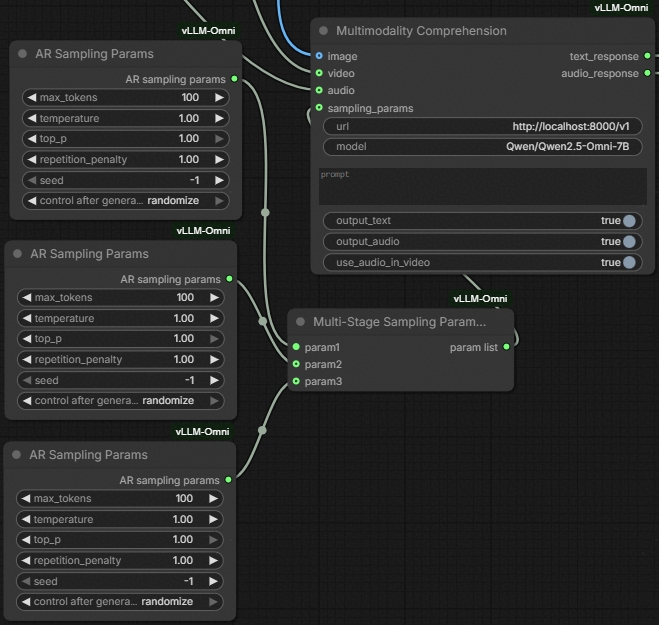
- For multi-stage models, you can connect multiple **AR Sampling Params** and **Diffusion Sampling Params** nodes to a **Multi-Stage Sampling Params List** node, and connect this node to the generation node.
- For some multi-stage models like BAGEL, [only one stage's sampling parameters are exposed and tunable via vLLM-Omni's online serving API](https://docs.vllm.ai/projects/vllm-omni/en/latest/user_guide/examples/online_serving/bagel/). Thus, these models are treated as single-stage ones. Please check the vLLM-Omni documentation on how to correctly set each model's sampling parameters.
- For multi-stage models where all stages are either autoregression or diffusion, you can also connect only a single Sampling Params node, indicating that this set of sampling parameters will be used for all stages.
## Screenshots and Examples
### Multimodal understanding (e.g., Qwen Omni series, BAGEL)
(Also available at **ComfyUI sidebar->Template->vLLM-Omni->vLLM-Omni Multimodal Understanding**)
> [!TIP]
> Although this node enables all-modality input, you should check whether the specific model you host and request for supports the modalities you connect to the node.
You can configure per-stage sampling parameters for multi-stage models.
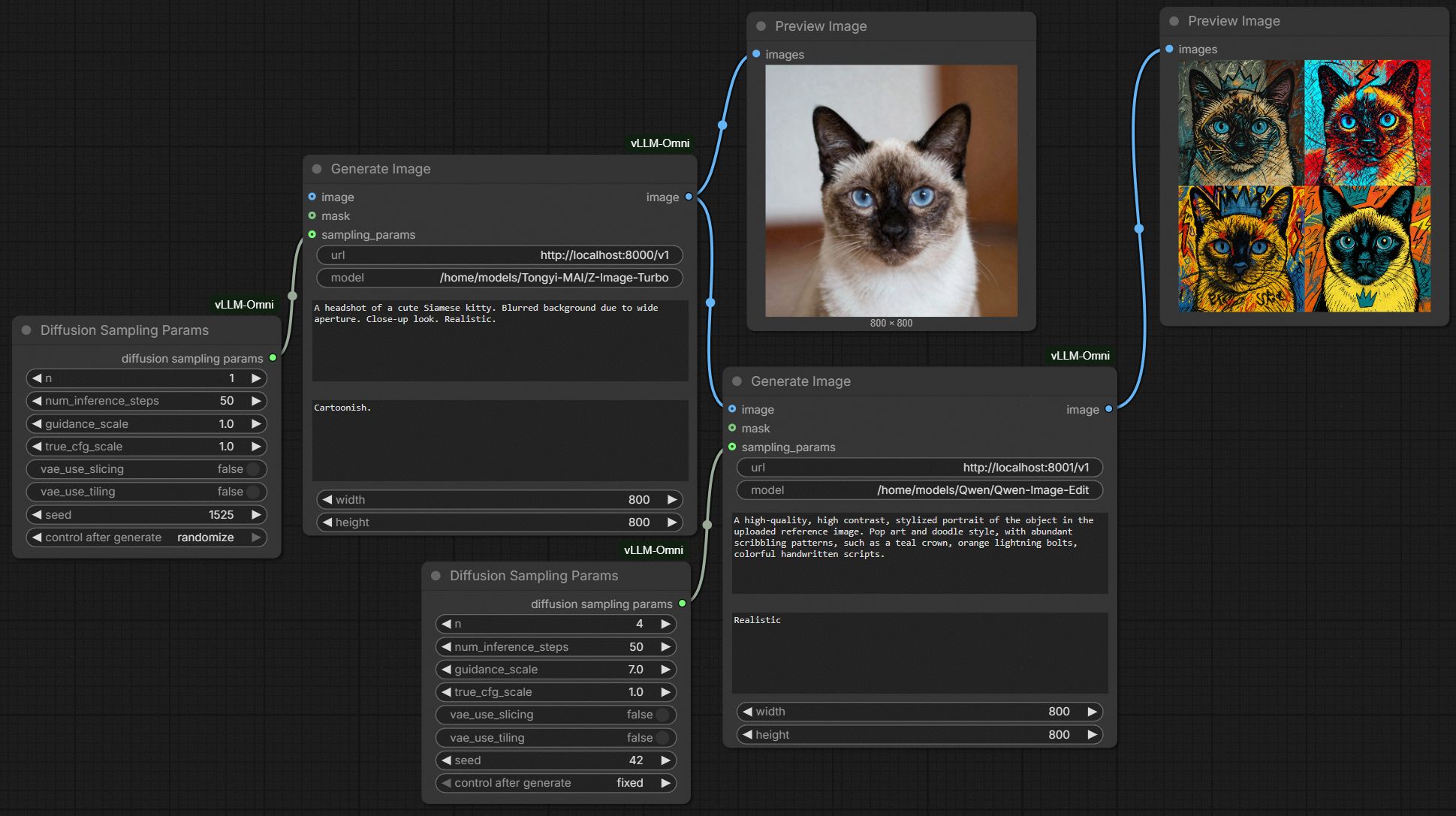
### Text-to-image and image-to-image generation (e.g., Z-Image-Turbo, Qwen-Image-Edit, BAGEL)
(Also available at **ComfyUI sidebar->Template->vLLM-Omni->vLLM-Omni Image Generation**)
> [!TIP]
> The node automatically choose text-to-image or image-to-image API endpoints depending on whether you connect an image input or not.
### Text-to-video and image-to-video generation (e.g., Wan)
(Also available at **ComfyUI sidebar->Template->vLLM-Omni->vLLM-Omni Video Generation**)
> [!TIP]
> The node automatically choose text-to-video or image-to-video API endpoints depending on whether you connect an image input or not.
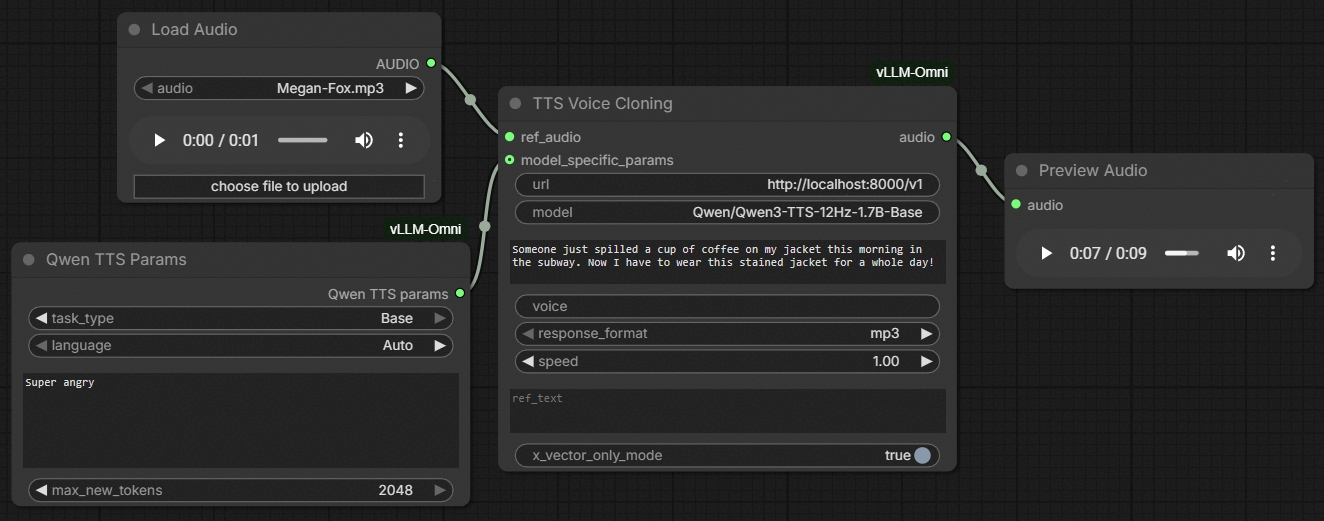
### TTS (e.g., Qwen TTS series)
(Also available at **ComfyUI sidebar->Template->vLLM-Omni->vLLM-Omni TTS**)
> [!TIP]
> There is a dedicated node for VoiceClone tasks with reference audio input. Other simple text-to-speech tasks should use the regular TTS node.
### Chaining multiple model services
(Also available at **ComfyUI sidebar->Template->vLLM-Omni->vLLM-Omni Chaining Services**)
## Develop
Follow the [development convention and rules of vLLM-Omni](https://docs.vllm.ai/projects/vllm-omni/en/latest/contributing/).
## Limitation and Non-Goals
- Single server mode only. No automatic load balancing or failover.
- Features set is bounded to vLLM-Omni's online service capability, including
- The types of models supported in online mode,
- The types of sampling parameters supported in the online mode,
- The ways to send files (primarily through full-length base64 in JSON payload),
- Figuring out errors in the payload (such as unsupported fields by a specific model) if the endpoint does not explicitly return an error,
- (The lack of) Authentication
- (The lack of) Progress indicator
## Support
If you are new to ComfyUI, please check out [its documentation](https://docs.comfy.org/) for usage instructions.
If you are new to vLLM-Omni, please also check out [its documentation](https://docs.vllm.ai/projects/vllm-omni/en/latest/) for usage instructions.
Whenever you find an issue or problem, please
- First find out if this is an upstream limitation of vLLM-Omni's online serving mode, by [checking their documentation](https://docs.vllm.ai/projects/vllm-omni/en/latest/examples/).
- [Open an issue](https://github.com/vllm-project/vllm-omni/issues) that clearly describes this ComfyUI or online service problem.
## Acknowledgements
Features
- https://github.com/dougbtv/comfyui-vllm-omni/ The official reference implementation for ComfyUI integration with vLLM-Omni's DALL-E compatible image generation API.
- https://github.com/Comfy-Org/ComfyUI/tree/master/comfy_extras ComfyUI's built-in node implementations.
UI/UX design references
- https://github.com/sgl-project/sglang/pull/15271 SGLang Diffusion's official ComfyUI integration for image and video generation.
- https://github.com/SXQBW/ComfyUI-Qwen-Omni A third party ComfyUI integration for Qwen Omni series.
- https://github.com/flybirdxx/ComfyUI-Qwen-TTS https://github.com/DarioFT/ComfyUI-Qwen3-TTS Third party ComfyUI integrations for Qwen TTS series.